


Date: 07.04.2026
Introduction: Real-time Data Architecture
Real-time data processing is becoming increasingly important for companies to generate valuable insights from their operations. Typical use cases include the real-time processing of sensor data from manufacturing machines, which can then be enriched with data from other systems for example, ERP or MES data within a unified analytics platform.
In this article, I present an architecture that leverages the widely adopted open-source software ThingsBoard to collect and transmit field data into the comprehensive cloud-based data platform Microsoft Fabric.

Introduction to Technologies
In the following section, I will take a closer look at both technologies and how they work together to enable a seamless flow of real-time device data to the cloud.
ThingsBoard Community Edition (CE) is a widely used open-source IoT platform, popular among industrial and enterprise environments for its flexibility and scalability. It is used by many large organizations to manage IoT devices, collect telemetry data and forward it to other systems through a wide range of connectors, such as Azure Event Hubs, MQTT brokers, HTTP endpoints and more.
The ThingsBoard set-up in my example consists of two main components: ThingsBoard IoT Gateway and ThingsBoard CE Platform:
- ThingsBoard Gateway:
The Gateway acts as the bridge between local industrial equipment and the ThingsBoard Platform. It supports a wide range of industrial communication protocols (e.g., OPC-UA, Modbus, BACnet) and converts data into the MQTT(S) or HTTP format. - ThingsBoard Platform:
Deployed either in the cloud or on-premises, the ThingsBoard Platform handles device management, data storage, rule-based data processing and provides external connectors to integrate with other systems (e.g. services in Microsoft Azure, AWS, GCP). In this example, I use the external Kafka connector to forward data to Azure Event Hubs from where it is ingested into the KQL Database in MS Fabric.
Together, ThingsBoard Gateway and Platform provide an IoT data pipeline, handling edge data acquisition, processing, and forwarding to other systems. This makes ThingsBoard an ideal solution for bridging industrial environments with cloud-based data platforms, such as Microsoft Fabric.
Companies are increasingly seeking integrated data platform solutions that can cover fundamental data requirements such as ingestion, storage, processing, and visualization of both real-time and batch data within a single software environment. The goal is to create a consistent and scalable data foundation that supports analytics, automation, and AI-driven use cases. Microsoft Fabric provides a comprehensive platform that unifies native components from the Microsoft ecosystem.
For real-time data processing, Microsoft Fabric leverages the Kusto Query Language (KQL) Database, a high-performance database technology developed by Microsoft. It is optimized for high-ingestion, time-series, and streaming data scenarios. Through native connectors to Azure Event Hubs, Eventstreams and others, data can be ingested into the KQL database in near real time. Incoming data is processed, aggregated, and queried using KQL, which provides highly efficient analytics over large volumes of data.
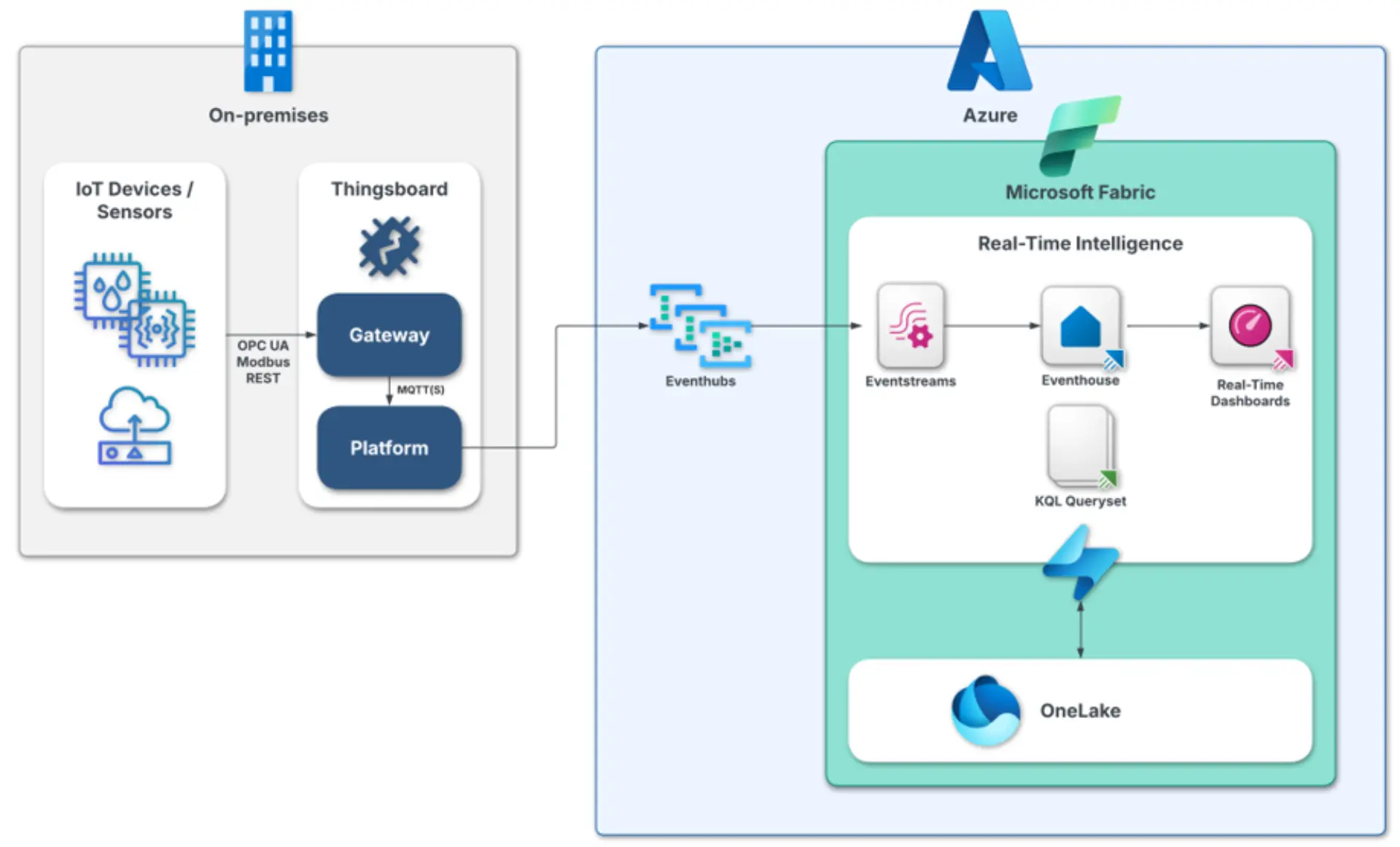
Figure 1: Real-time architecture (ThingsBoard & MS Fabric)
Hands-On:
In the following I explain setting up a complete IoT pipeline that collects MQTT data (in my case from a solar system) using ThingsBoard and send it to Microsoft Fabric. The goal is to show how field data can be provided to the cloud to conduct real-time monitoring and analytics.
Prerequisites
Before you start, make sure you have the following in place:
✓ ThingsBoard Installation
There are various installation options to deploy the ThingsBoard CE platform e.g. on Ubuntu or Docker (Linux, Mac OS, Windows).
You find a comprehensive installation guide on the ThingsBoard Website
After successfully installing the ThingsBoard Platform you can install the Thingsboard IoT Gateway and connect it to the ThingsBoard Platform, explained here.
✓ Azure Event Hubs
Set up an Azure Event Hubs namespace and create an Event Hub. You need two shared access policies:
- A policy to retrieve data from ThingsBoard. (The primary key and access key name is required in the ThingsBoard rule engine Kafka connector node)
- A policy to send data to Microsoft Fabric (Credentials are needed to set up an Event Hub connection in MS Fabric)
✓ MS Fabric
Make sure your Microsoft Fabric instance is set up.
Step 1: Connecting Field Data with ThingsBoard
In the following section, I will explain how to connect your device’s MQTT data to the ThingsBoard Gateway and link it to the ThingsBoard platform:
- Go to the ThingsBoard Platform menu and select the Gateway you have set up. It should appear as “Active” in the gateway list
- Click on the gateway and open “Connector Configuration”. This is where you set up the connection between your field devices and ThingsBoard.
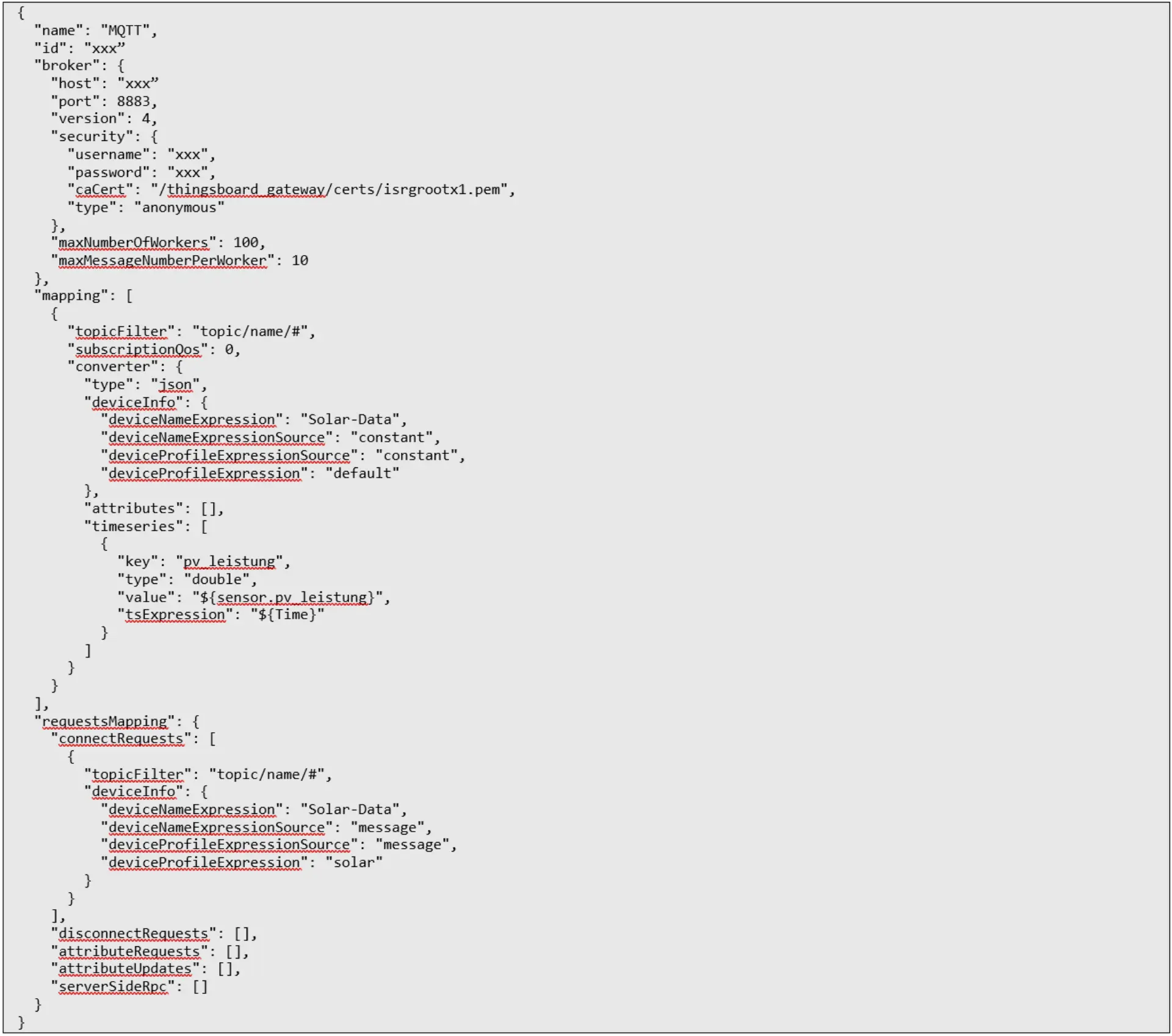
- From here, you can start configuring which MQTT topics to listen to. Add a connector of type “MQTT” and configure the broker connection and the data mapping of the topic ThingsBoard should subscribe to. You can either use the graphical user interface or create a JSON configuration under the Advanced Options, see Figure 2.
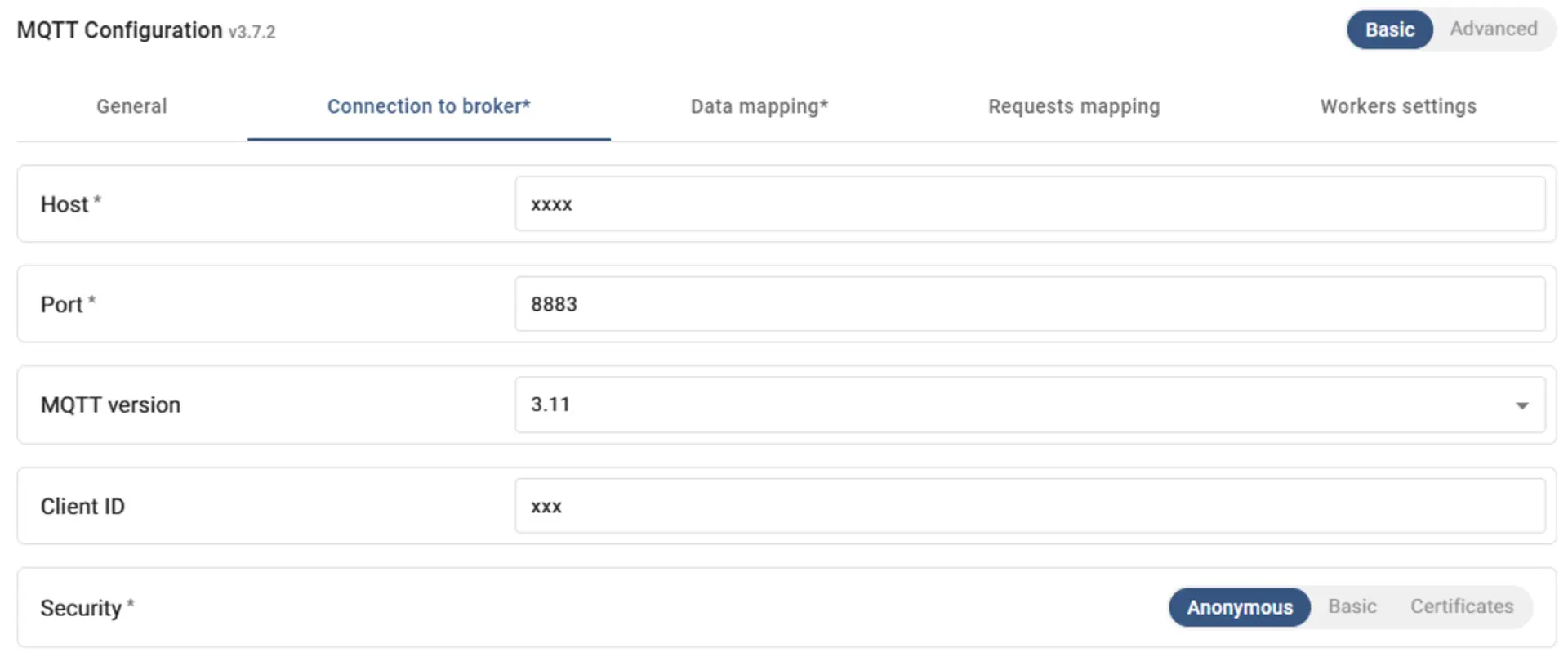
Figure 2: MQTT Configuration Set-Up
Here is an example for a connector configuration JSON:
After successfully connecting your data to the ThingsBoard Platform you should see your data coming in, when you click on your device name and look into the “latest telemetry”, see Figure 3.
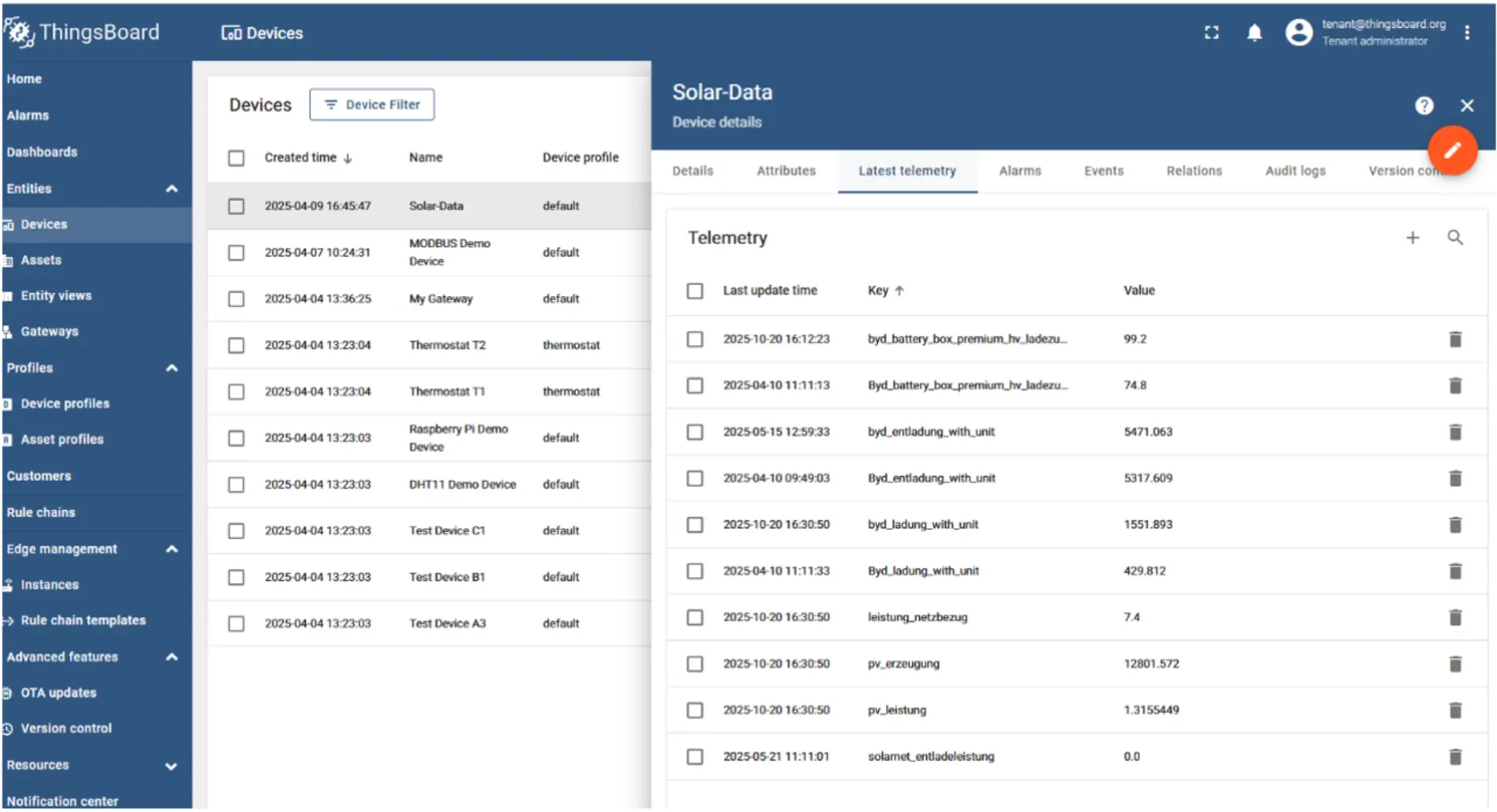
Figure 3: Field Device Telemetry
Step 2: ThingsBoard Rule Chain
Next, use the ThingsBoard Rule Chain to process the data and send it to Azure Event Hubs via the external Kafka Connector. Rule chains allow you to define how incoming telemetry is handled, filtered, transformed, and forwarded.
In this example, I create a rule chain with three main nodes, see Figure 4.
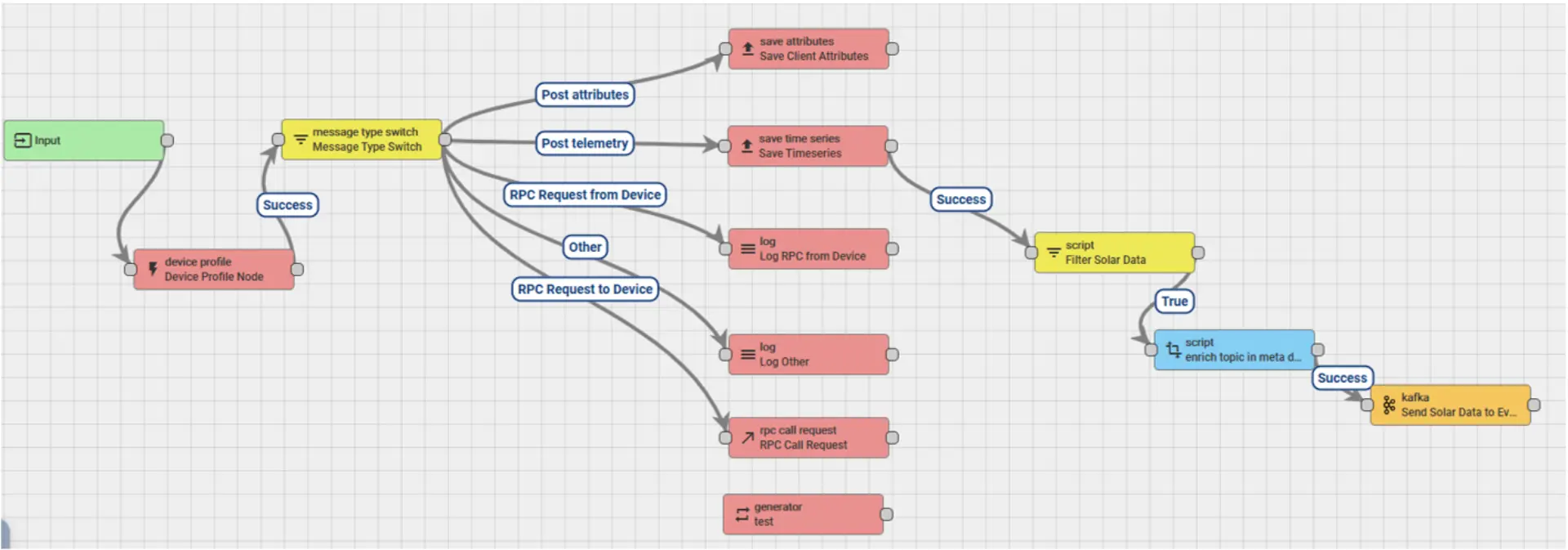
Figure 4: ThingsBoard Rule Chain
. I start the rule chain from the default node “save time series” where all the telemetry data is collected and include the foloowing nodes:
1. Filter Script Node: This node filters incoming messages to select only data from the target device. Using JavaScript, I check the device name:
return metadata.deviceName === "Solar-Data";
2. Transformation Script Node: Here I enrich the metadata with additional information that Azure Event Hubs requires. For example, I assign a topic name:
var topic = "solar-data";
metadata.topic = topic;
return { msg: msg, metadata: metadata};
3. External Kafka Node: Sending data to Azure Eventhubs. The prerequisite is that you have set up an Event Hub in the Event Hubs namespace with the shared access policy mentioned in the prerequisites. The most important configuration options in the Kafka node are:
- Topic pattern: Here you have to bring on the topic name that you have created under step 2 (in my example called “solar-data”)
- Bootstrap servers: energydata.servicebus.windows.net:9093
- Key serializer: org.apache.kafka.common.serialization.StringSerializer
- Value serializer: org.apache.kafka.common.serialization.StringSerializer
- Other properties:
Key
security.protocol
sasl.mechanism
sasl.jaas.config
Value
SASL_SSL
PLAIN
org.apache.kafka.common.security.plain.PlainLoginModule required username="$ConnectionString" password="Endpoint=sb://eventhubsnamespace.servicebus.windows.net/;SharedAccessKeyName=sharedaccess-key-name;SharedAccessKey=sharedaccessprimarykey=;EntityPath=eventhubname";
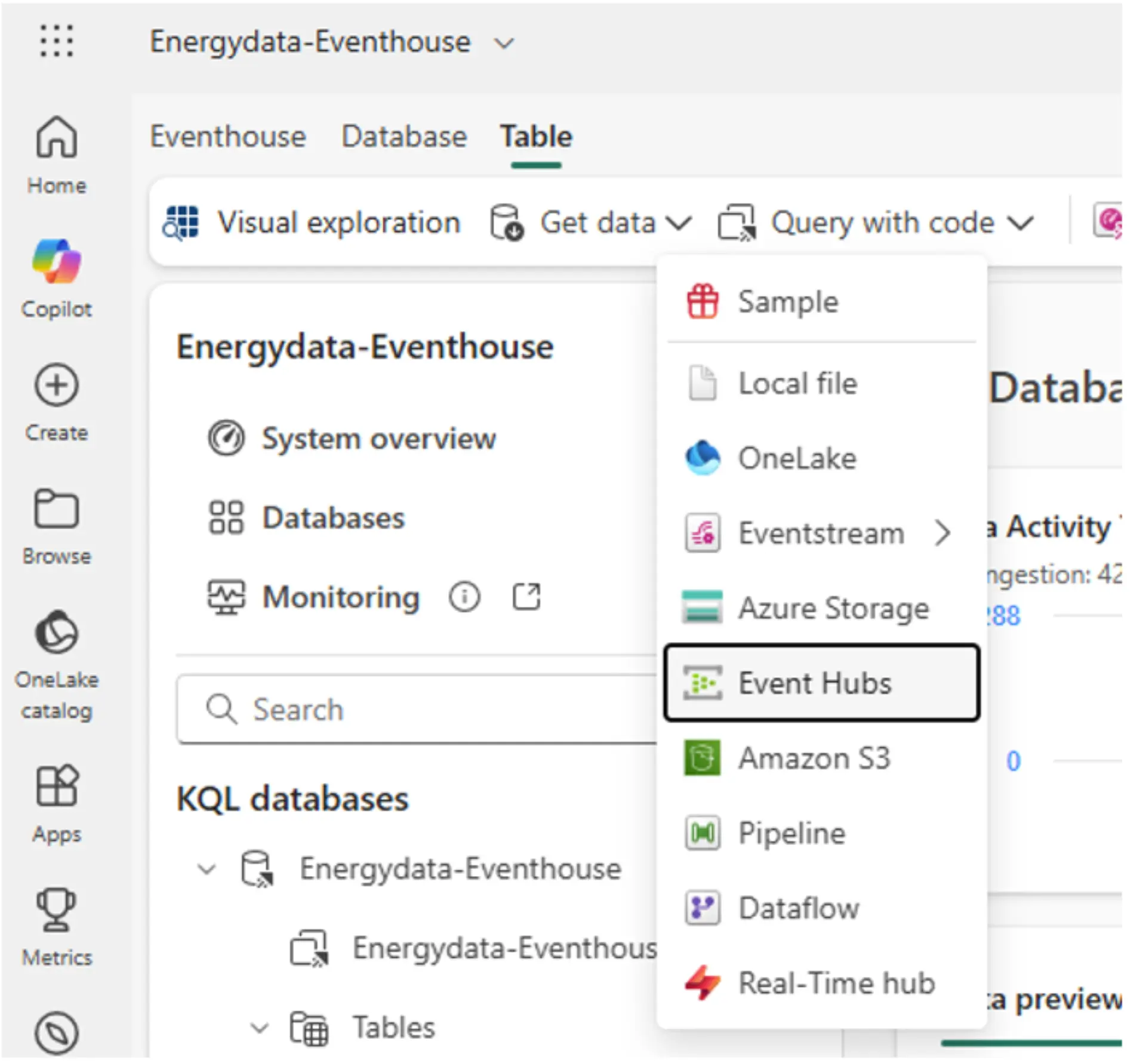
Abbildung 5: MS Fabric 2. Event‑Hubs‑Verbindung
Step 3: Connect real-time data to MS Fabric
After the MQTT data has been sent from ThingsBoard to Azure Event Hubs, the next step is to connect it to Microsoft Fabric for analysis, visualization, and real-time monitoring.
1. KQL Database and table creation
Within the MS Fabric workspace set-up a KQL Database which is the timeseries database used in MS Fabric. Inside the new database, create a KQL table. This table will store the structured telemetry coming from Event Hubs. You can define columns that match the telemetry schema.
2. Event Hubs connection:
Within the database table click on “Get Data” and “Event Hubs”, see Figure 5.
Enter your Event Hubs namespace, event hub name, and shared access key credentials.
Specify the consumer group that will read the messages. Consumer groups allow multiple clients to read the same Event Hub independently.
This connection ensures that new telemetry arriving in Event Hubs is automatically ingested into the Fabric table. You see newly incoming data highlighted in green within the table.
Step 4: Set up Real-Time Dashboard and Prepare KQL Queries
With the connection established, you can now create a real-time dashboard to visualize the telemetry data, by right-clicking on the KQL Table and clicking on “Real-time Dashboard”.
Here you can create near real time charts with KQL queries based on the newly created KQL DB table.
The Kusto Query Language (KQL) is a scripting language used to query and transform time-series data. It is built around a pipe (|) syntax, which allows you to chain multiple operations such as filtering, projecting, aggregating, and sorting in a clear, readable sequence, see example below.
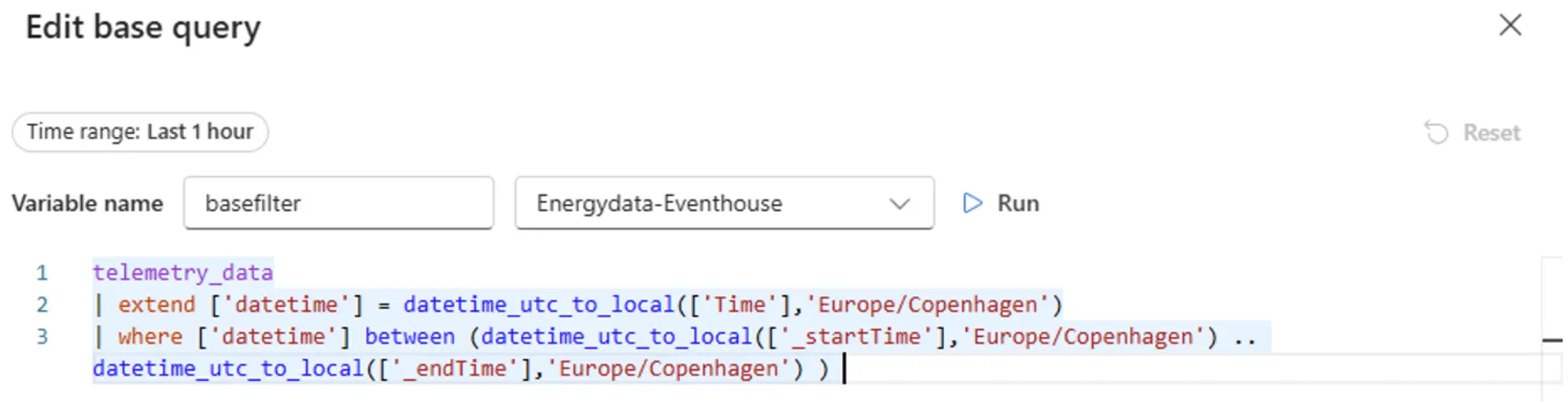
Figure 6: Example of Kusto Query Language (KQL)
After having prepared the data you can see the data visualized in near-real time in the dashboard. There is also an option to auto-refresh the dashboards in a defined time range in case you want to have a live view e.g. on the shopfloor.
Conclusion
The solution brings together the strengths of two powerful platforms. ThingsBoard offers a scalable and flexible setup that supports multiple field protocols and a wide variety of external connectors, with the option to be deployed on-premises. Meanwhile, Microsoft Fabric provides an all-in-one cloud environment where data can be stored, processed, and visualized in near real-time using KQL.
Together, they create a robust and efficient ecosystem that combines edge and cloud capabilities.